How to Export a BOM from SolidWorks
A practical guide to extracting Bills of Materials from SolidWorks assemblies, common pitfalls, and how to keep your BOM data working for you.

If you’re anything like me, you may have struggled with the dependency of a Bill of Materials or BOM within an engineering project. If you are still in school, believing that a BOM is important to the success of a project can be hard to understand. But trust me, if your team members cannot sufficiently track the specifications of what’s needed, you cannot execute.
While many start with more easily attainable CAD programs like Fusion360, FreeCAD, or OnShape, this tutorial is to help those out on SolidWorks for their workflow.
Method 1: Insert a BOM Table
The most common approach is adding a BOM table to a drawing sheet:
-
As with anything, start with an assembly in SolidWorks. But preferably, you would want to start in a drawing which is what I am going to do here.
-
At the top of the SolidWorks toolbar, you are going to see options such as file, edit, view, insert, etc. Go to Insert > Tables > Bill of Materials
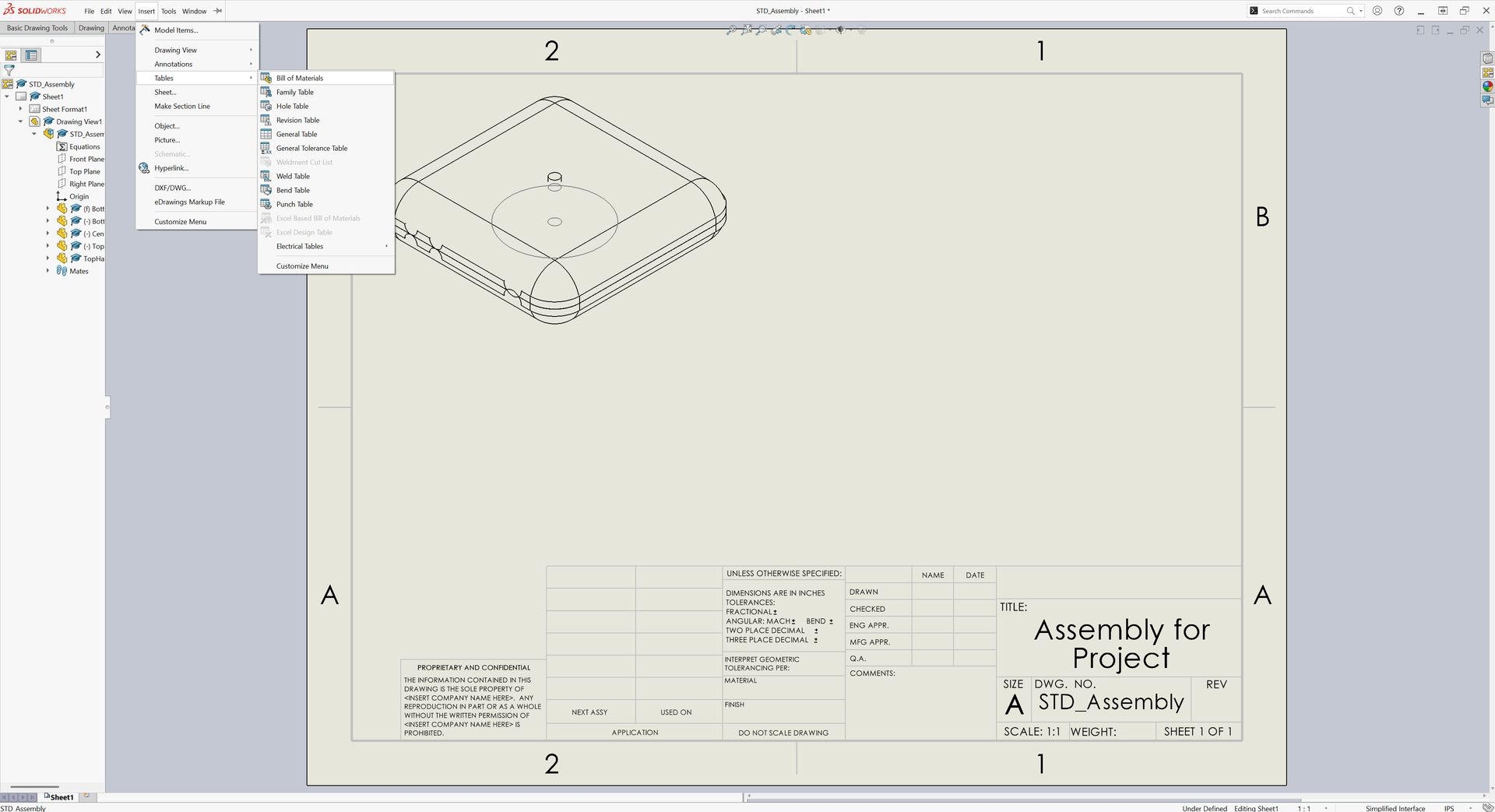
Navigating the SolidWorks header -
Choose between Top-level only, Parts only, or Indented. Parts only just makes sense to me for this drawing, so that's what I will pick.
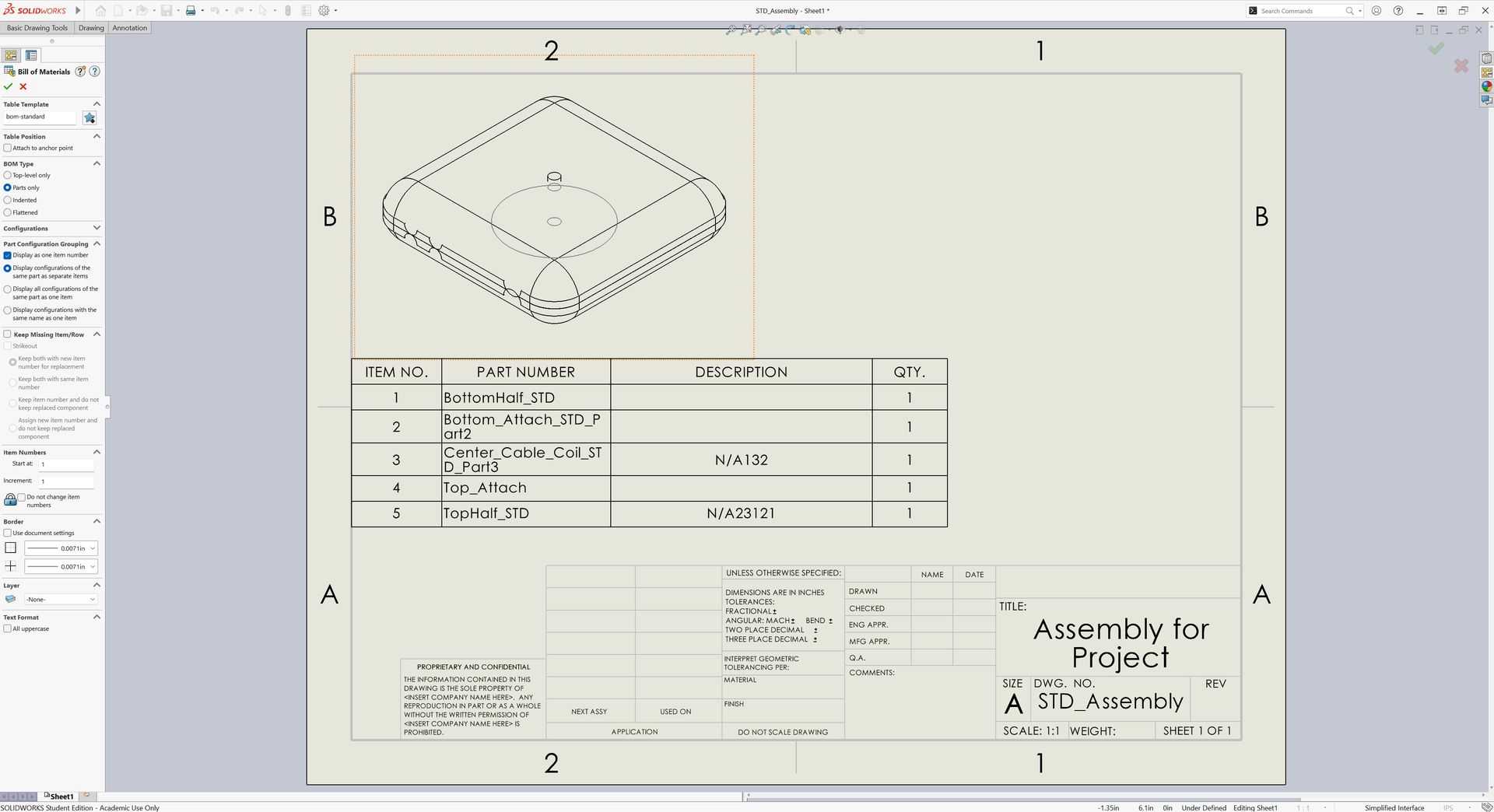
Pick your table -
Click OK and place the table somewhere on your drawing.
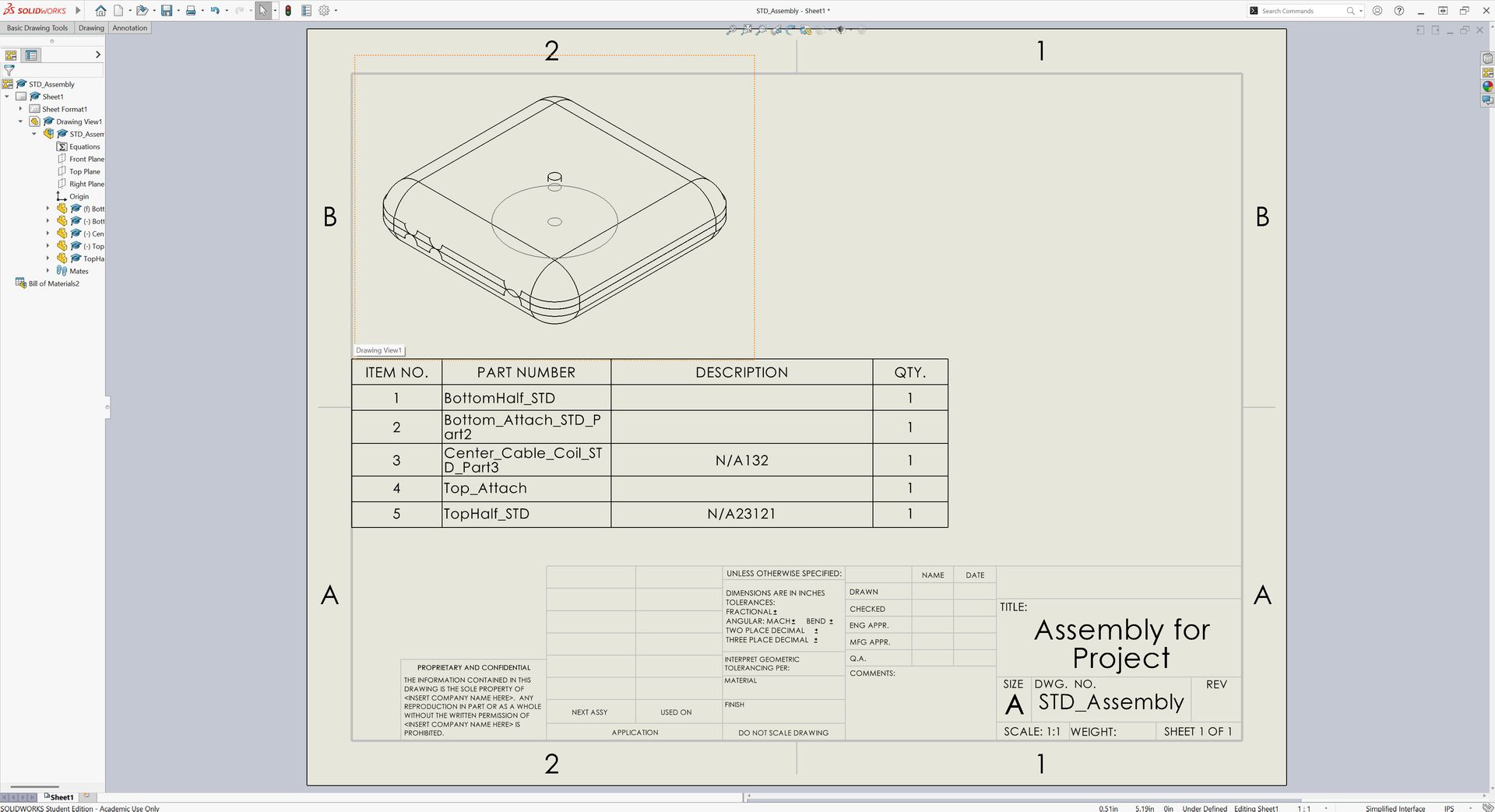
You're done!


From there, you can right-click the table and select Save As to export it as a .csv (for a detailed concise view), .xls (for Excel spreadsheets), or a .txt file.
When this works well
This works quite well when you have assemblies with not an absurd amount of parts. Because what will happen with too many parts is that your BOM sheet can either become really big, or just downright unreadable. You could also just choose to have many sub-assemblies to get around this limitation, but then the process just gets more lengthy. You can also choose a different strategy:
- Right click your same BOM table as created before.
- Go to File > Save As
- Change the file type to Template (*.sldbomtbt)
What this all breaks down to
- Large assemblies with hundreds of parts become difficult to work with
- Custom properties may not come out clean, requiring manual column configuration
- No revision tracking — if you export on a weekly basis, you won't have a way to track revisions unless you compare every single file line by line.
- No cost tracking — unit and total costs require manual entry in Excel
- Duplicates across sub-assemblies don't work themselves out automatically
Common Frustrations
Most engineers hit the same walls when exporting BOMs from SolidWorks:
- Custom property mismatches — part numbers, materials, and descriptions stored as custom properties don't always show up where you expect
- Duplicate parts — the same fastener used across 5 sub-assemblies shows up 5 separate times instead of consolidated
- Excel cleanup — every export leads to 30+ minutes of formatting, deduplication, and manual cost entry
- No revision memory — when the design changes, you re-export and manually diff against the old spreadsheet
- Vendor information — there's no built-in way to look up vendor part numbers, pricing, or availability
A Better Approach
If you're exporting BOMs regularly and dealing with any of the issues above, it's worth looking at dedicated BOM management tools that connect directly to SolidWorks and many other CAD programs.
NodeBOM extracts BOM data straight from your active SolidWorks window. Do drawings or work within SolidWorks from this point on. SolidWorks built an API that allows your workflow to be easily understood and edited. Data that can be pulled includes part names, quantities, materials, and custom properties directly from the assembly tree. There are tools that are provided as well:
- Deduplicate parts across sub-assemblies with AI matching
- Track costs with budget breakdowns and price history
- Compare revisions side-by-side when the design changes
- Look up vendor pricing from 1,000+ distributors via Nexar
- Sync changes back to your SolidWorks assembly
It runs locally on your machine ensuring that you can keep your privacy. There are AI tools included in the list above that may prove helpful to your workflow, just be mindful that it may send metadata (not geometry) of your BOM to an AI provider to help assist in whatever you need. It's free to try out as well if you find SolidWorks' implementation of BOM or the excel export to be too limiting for your team's needs.
Whether you feel like SolidWorks' built-in tools or a manual spreadsheet method works for you, it's important to make sure you or your team don't lose too much time to a tool that can make execution that much quicker.
Disclosure: This article was written by Joseph Chilcoat and AI-proofread for clarity and accuracy.
Share this article